
1.Install
Put the folder community_home_theme with the custom modules of your Odoo server and restart Odoo. Go to Apps, click Update Apps List, search for Community Home Menu Theme and click Activate. Or install it for free from the Odoo App Store.
You need: Odoo 20 Community. First uninstall other modules that replace the apps menu or add an apps side bar.
2.The home screen
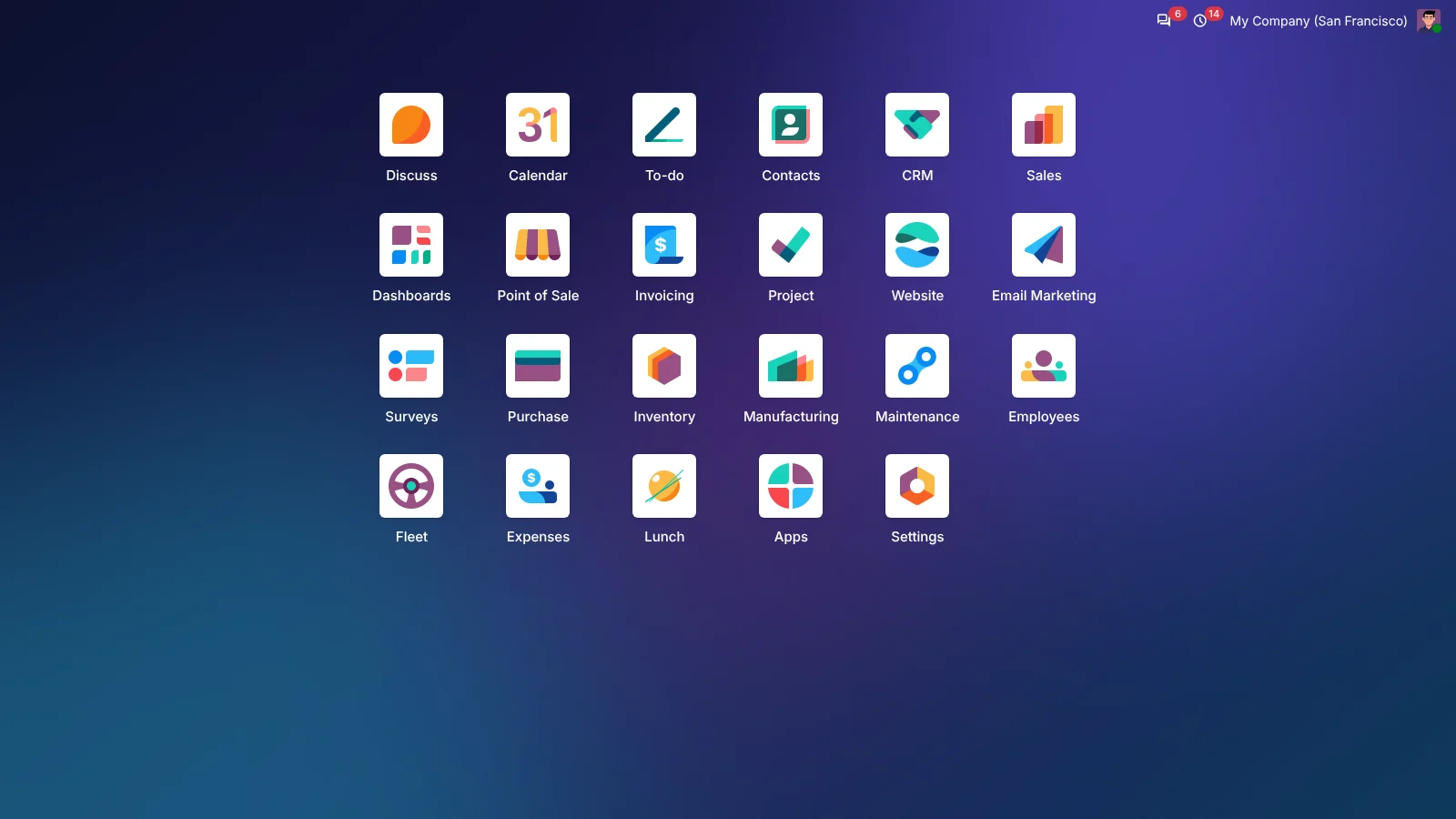
After logging in you see the home screen: all your apps as icons. Click an icon to open the app. At the top right you find your messages, activities and user menu, as always.
3.There and back
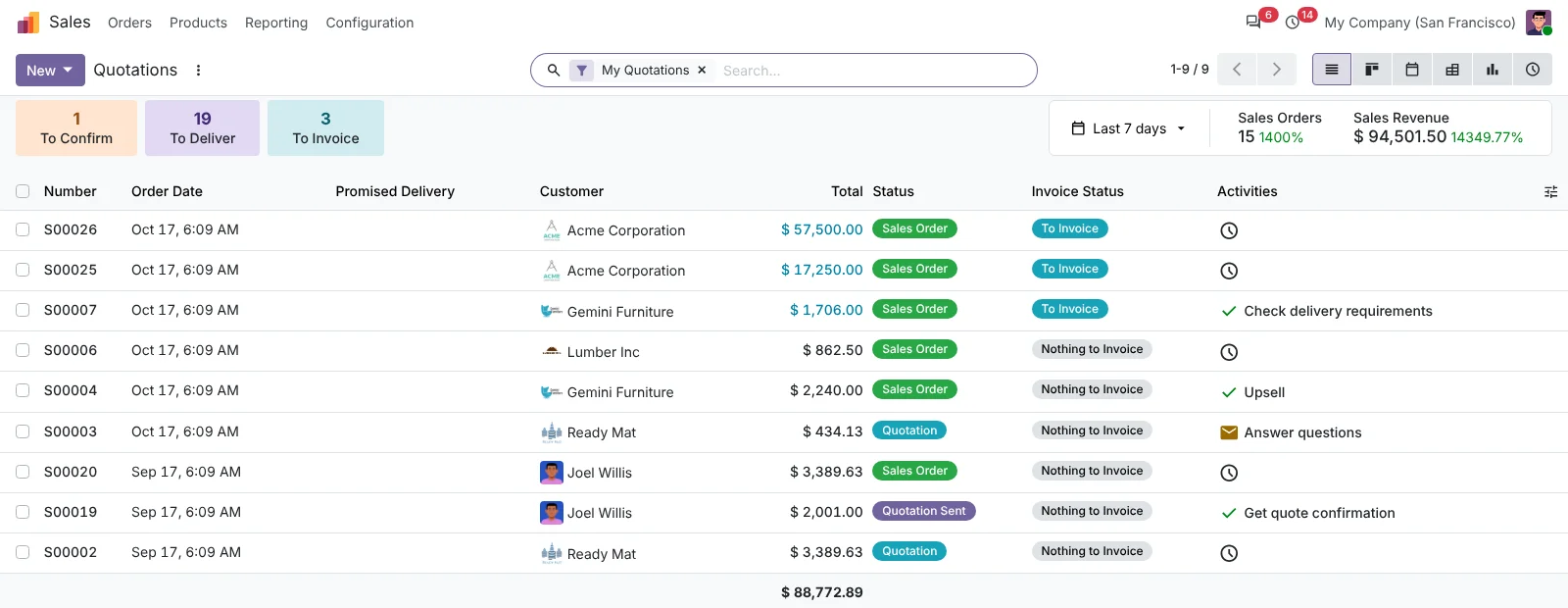
Inside an app, the app icon and name are at the top left. Move your mouse over them: the icon turns into an arrow. Click and you are on the home screen. There, the arrow at the top left takes you back to the app you were in.
With the keyboard: Alt + H switches between the app and the home screen.

4.Apps in your own order
Press and hold an icon for a moment and drag it to another place. The order is saved per user, so everyone can have their own layout.
5.Your own style
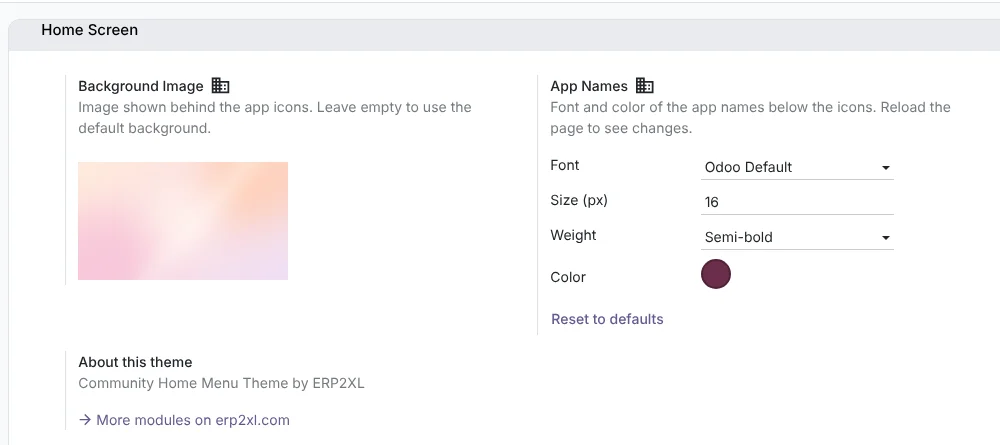
Go to Settings › General Settings › Home Screen. There you choose, per company:
- Background: upload an image (JPG or PNG). Empty = the default background.
- App names: font, size, weight and color.
Click Save and reload the page. Reset to defaults takes you back to the standard look.
Tip for a dark background: choose white as the color. The buttons at the top right of the home screen then get the same color automatically.
6.Keyboard shortcuts
- Alt + H: to the home screen and back
- Arrow keys: from app to app
- Enter: open the selected app
- Escape: back to your app
- Type a letter: search all menus
Questions?
Stuck somewhere or want something changed? Email us at [email protected].