
Invoices and credit notes
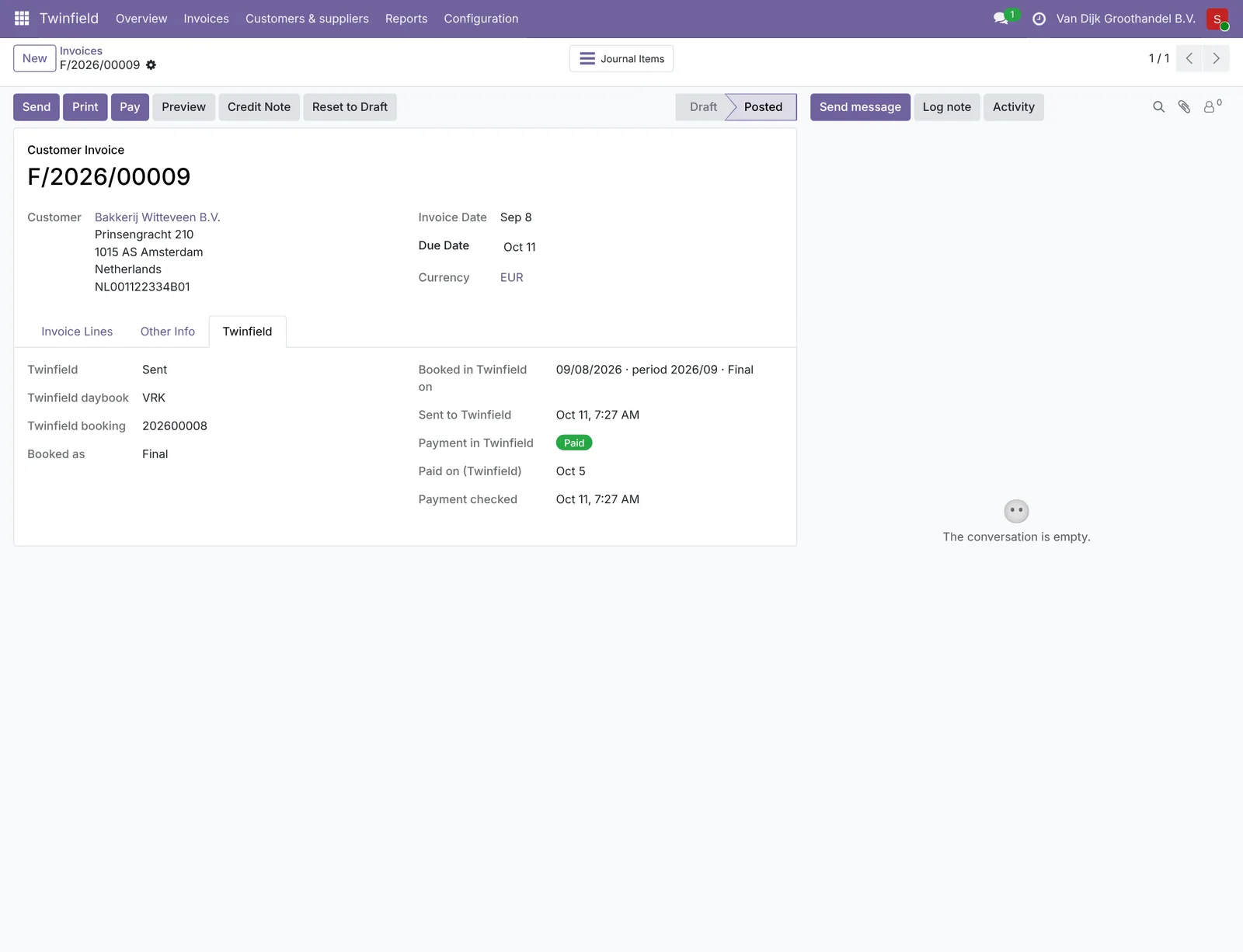
Every posted customer invoice and vendor bill goes to the right daybook in Twinfield, with one line per ledger account and VAT code. An invoice is never sent twice.
Post your invoices in Odoo and leave the rest to the connector. Start with approval: you see everything before it goes to Twinfield. All correct? Switch to automatic and never look back at invoices, credit notes or changes to customers and suppliers.
Soon available in the Odoo Apps Store. Want to start now? Contact us.
Quickly done
Install, log in to Twinfield once and go through the mappings: the overview shows the way. After that you simply post your invoices in Odoo and they appear in Twinfield by themselves.
What the connector does
You simply work in Odoo. The connector keeps Twinfield up to date and shows exactly what happens.
Every posted customer invoice and vendor bill goes to the right daybook in Twinfield, with one line per ledger account and VAT code. An invoice is never sent twice.
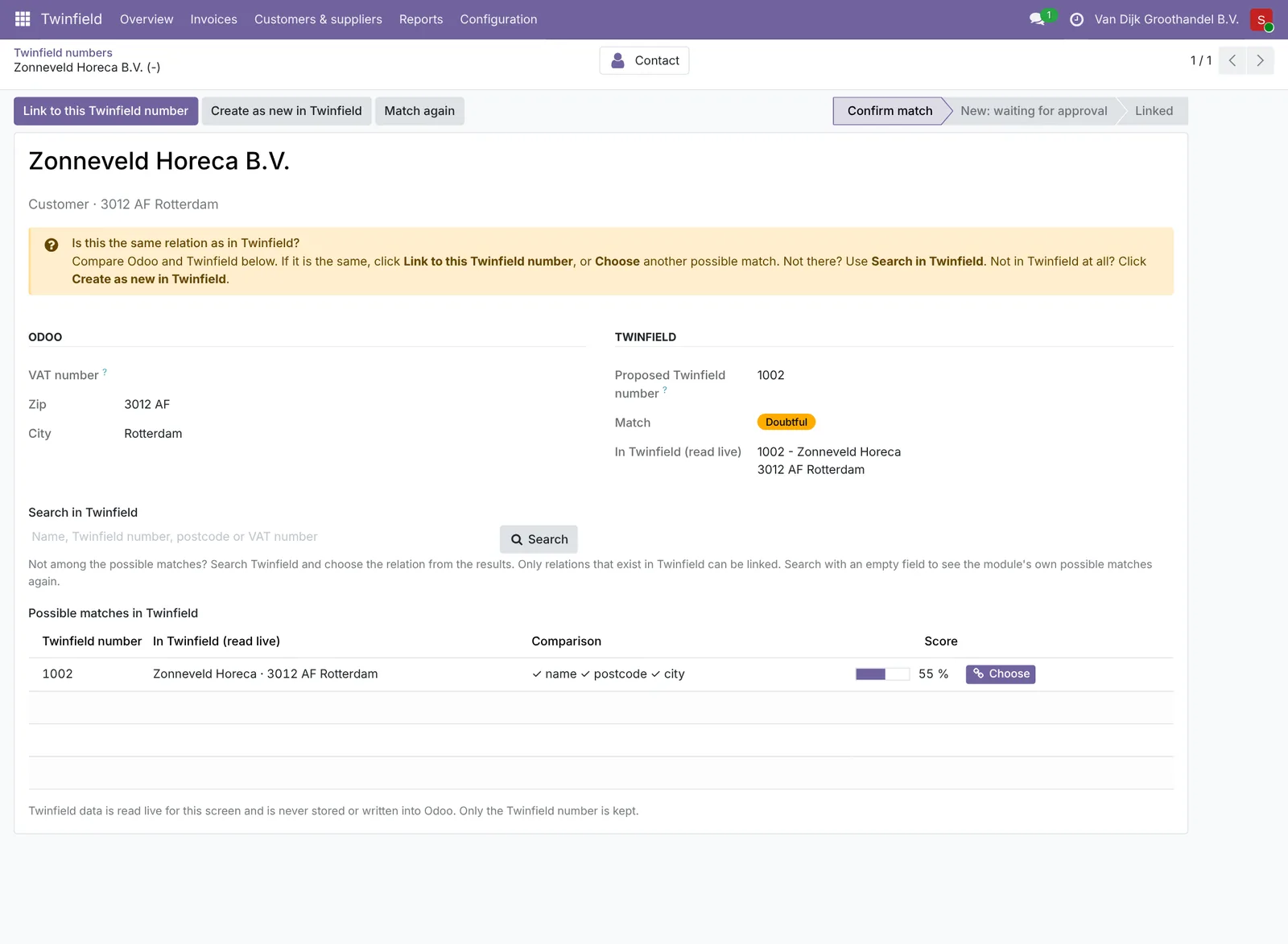
Existing relations are recognised by VAT or Chamber of Commerce number. The connector creates new relations in Twinfield and sends along changes made in Odoo.
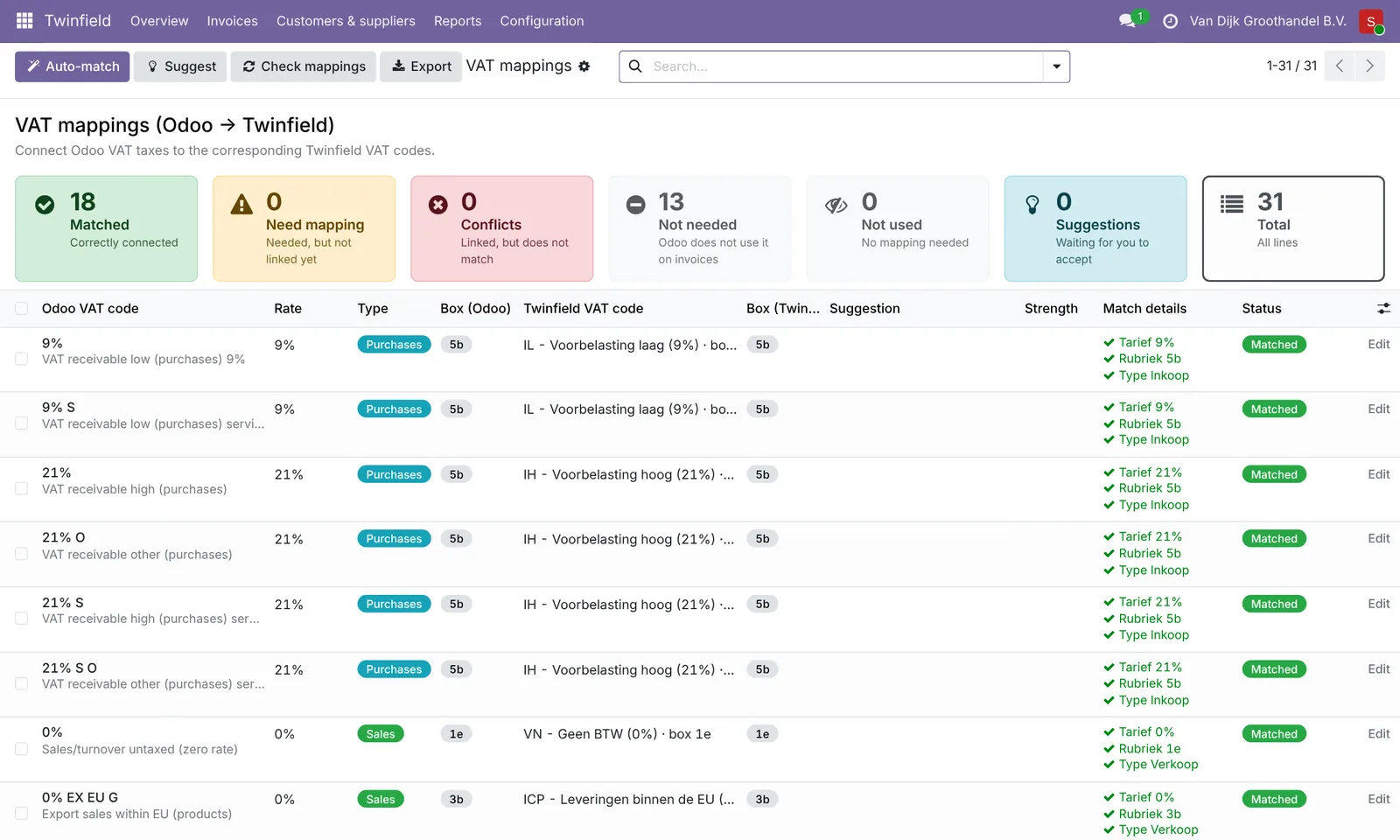
Map VAT, ledger accounts and daybooks once. The connector suggests, shows what is still needed and only asks for what your company really uses.
Start with approval: nothing goes to Twinfield until you click Approve. All correct? Then switch each type to automatic.
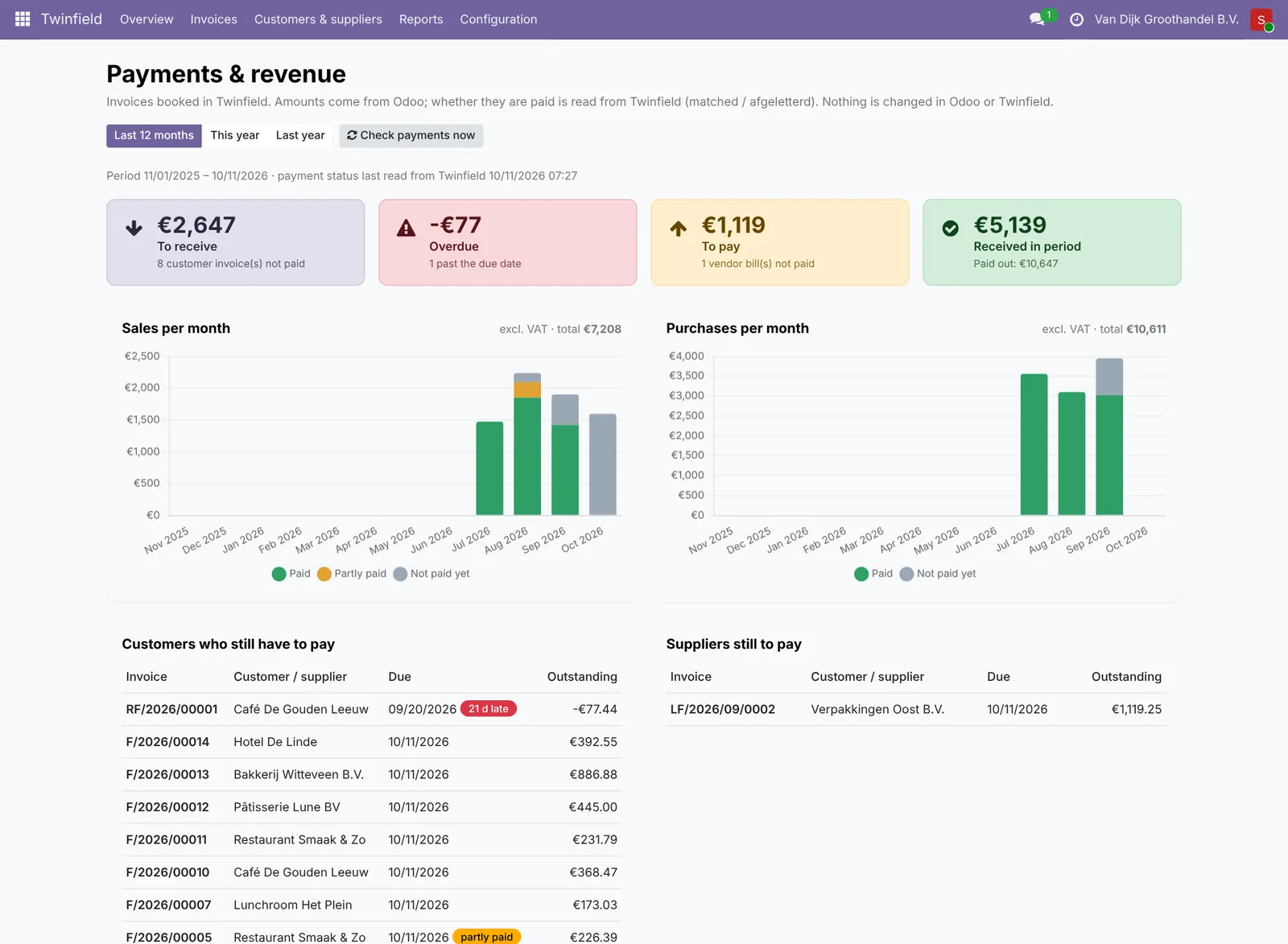
See in Odoo which invoices are paid (matched) in Twinfield, with an overview of open items. For information only: Odoo itself does not change.
One overview of what is waiting, what went wrong and why, plus a daily summary e-mail. Nothing gets lost: what can't go yet waits in the queue.
How it works
You start safely with approval. Once you see everything goes well, you switch to automatic.
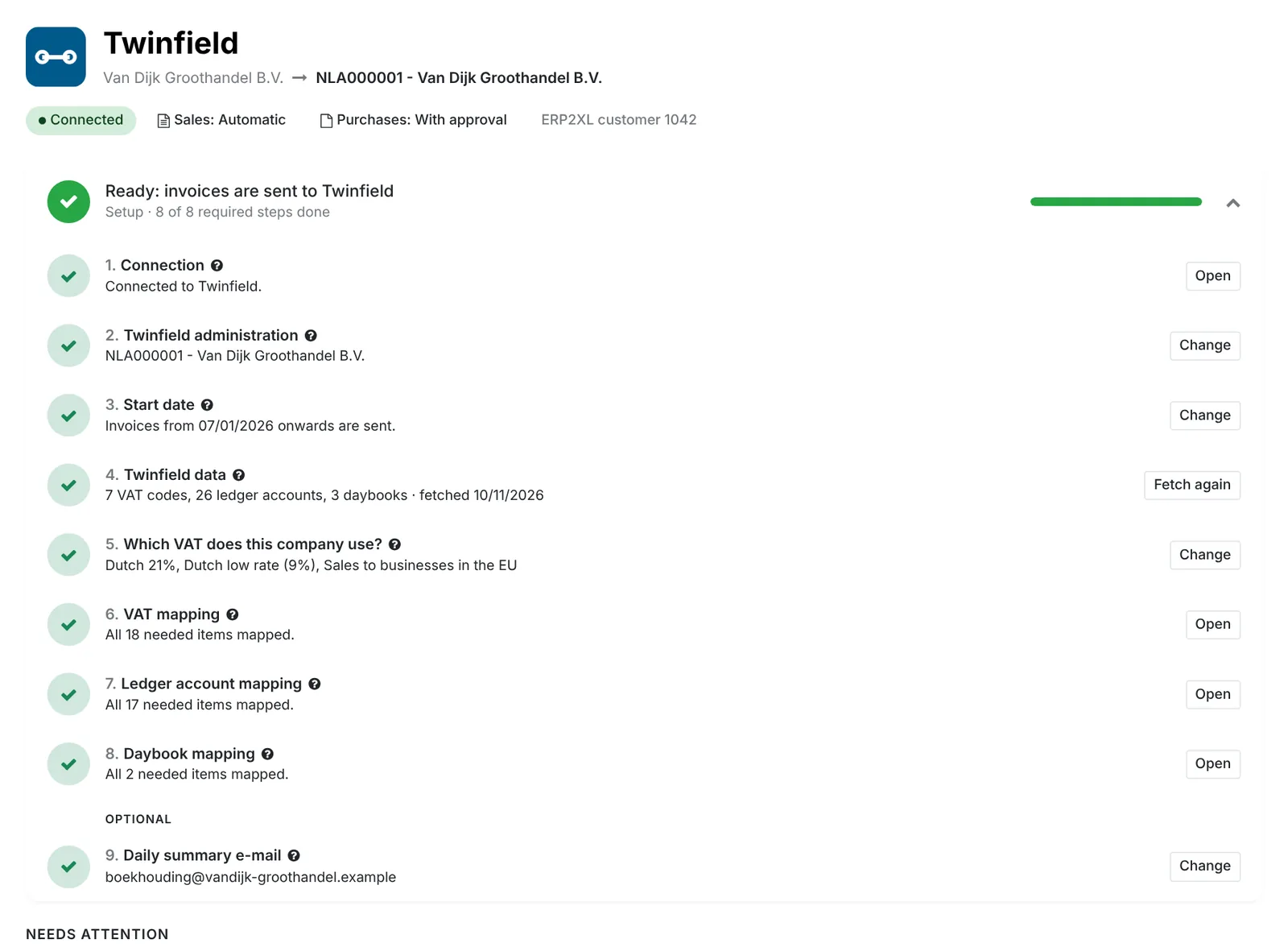
Install the module in Odoo, click Connect Twinfield and log in to Twinfield once. No licence key needed.
Choose the administration and a start date, fetch the VAT codes, ledger accounts and daybooks and map them. The overview walks you through the steps.
Invoices, new relations and changes wait until you click Approve. You see exactly what goes to Twinfield and check it there.
All correct? Switch to automatic. Invoices, credit notes and customer changes go by themselves. You only get a heads-up when something needs attention.
What it looks like
Safe and predictable
The ERP2XL connection service only takes care of safe access to Twinfield. Your invoices and relations go directly from Odoo to Twinfield.
What you need
Good to know
Frequently asked questions
Yes. Each company in Odoo books into a Twinfield administration of its choice. An accountant with many administrations can create a separate Twinfield user per client, so the connection can only reach that one administration.
You choose a start date. Only invoices from that date onwards go to Twinfield. Older invoices stay as they are.
Before sending, the connector checks whether the invoice number is already booked on that customer or supplier in Twinfield. If so, the invoice is not sent again.
The connector can delete a provisional booking in Twinfield when you reset the invoice to draft in Odoo. A final booking can't be deleted: then you create a credit note, as in any bookkeeping.
Yes, as long as the currency exists in Twinfield. Amounts go to Twinfield in the invoice currency; Twinfield converts them with its own rate.
No. Invoices and relations go directly from your Odoo to Twinfield. The ERP2XL connection service only takes care of the access and only sees usage counts, no content.
Click Disconnect Twinfield or uninstall the module. Everything already in Twinfield stays there. The connector keeps its data only in its own tables; uninstalling removes them.
Take your time to read the user guide and the terms of use, or ask us your question.