
Mapping means: saying which Twinfield code belongs to which part of Odoo. You do it once; after that it goes by itself.
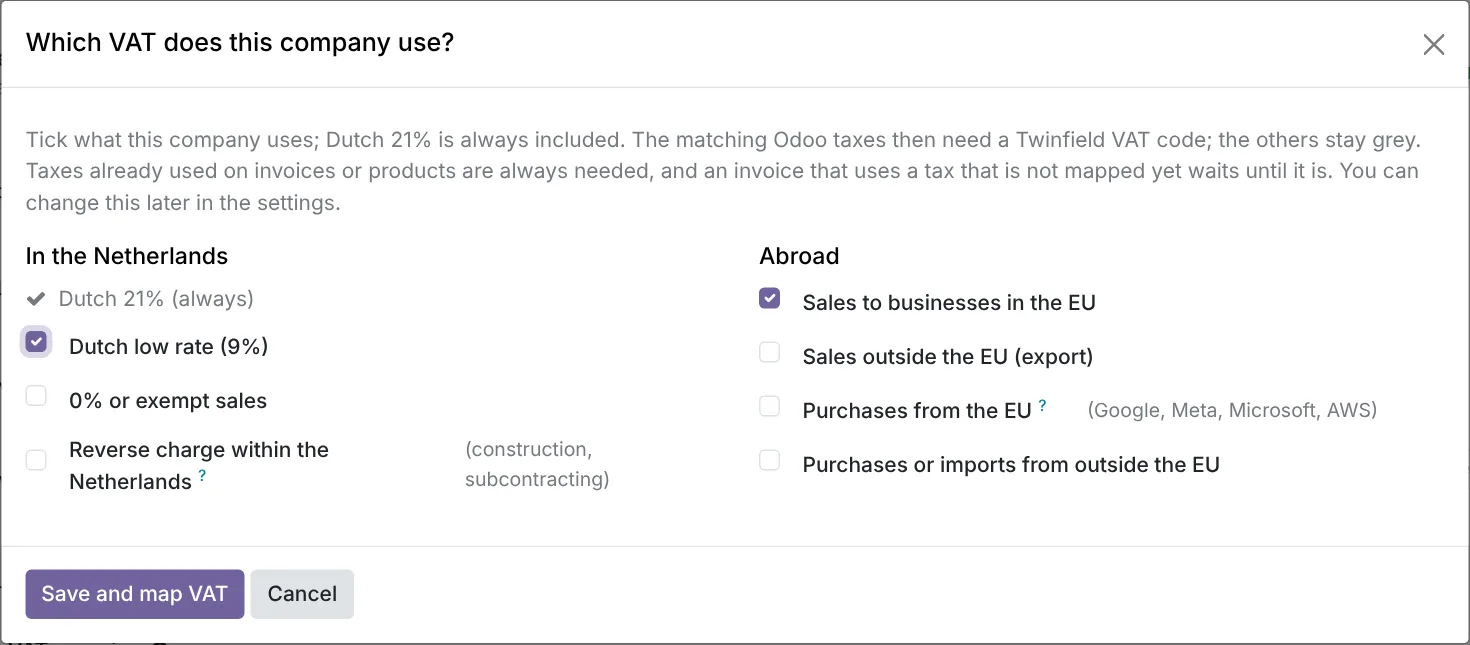
Which VAT does this company use?
Tick which VAT the company uses. 21% is always on. In the Netherlands: 9%, 0% and reverse charge. Abroad: sales within the EU, export, purchases within the EU and import. Then the connector knows which VAT you need to map, and doesn't ask for the rest. You find the question in the overview, at the top of the VAT mappings screen and in the Settings.
Per kind, the connector picks one Odoo tax, based on the box of the VAT return (1a, 1b, 3b, etc.). In doubt? Leave it off. If an invoice later uses another tax after all, you see which tax still needs a mapping.
What needs a mapping
Taxes and accounts on invoices of the last 12 months, the company's defaults, what is on products and product categories, and the sales and purchase daybooks. If an invoice later uses something new, it becomes Needs mapping by itself.
What Auto-match does
- VAT: same kind (sales/purchase), same percentage and one box.
- Ledger accounts: same number and same kind.
- Daybooks: sales → VRK, purchase → INK.
- VAT in two boxes (EU, import, reverse charge) you map yourself; the connector makes a suggestion.
Statuses
| Status | Meaning |
|---|---|
| Mapped | All right. |
| Needs mapping | Used, but not mapped yet. |
| Conflict | The code no longer fits, for example because it was deleted in Twinfield or changed kind. |
| Not used | You said this never goes to Twinfield. Use again sets it back. |
| Grey | Not needed, not used now. |
Fetching the Twinfield data again
Fetch again when you add or change a VAT code, ledger account or daybook in Twinfield. You can fetch at most once every 10 minutes. With a lot of data, fetching continues in the background by itself and you get a message when it is done.
Handy
Check mappings checks everything again. Export gives a list, for example for your accountant. If a mapping is missing, the invoice waits with exactly what is missing and an Open mappings button. After mapping it goes by itself.
Need help?
Can't work it out? E-mail us with your ERP2XL customer number (see Twinfield › Configuration › Connection) and a short description, at [email protected].