
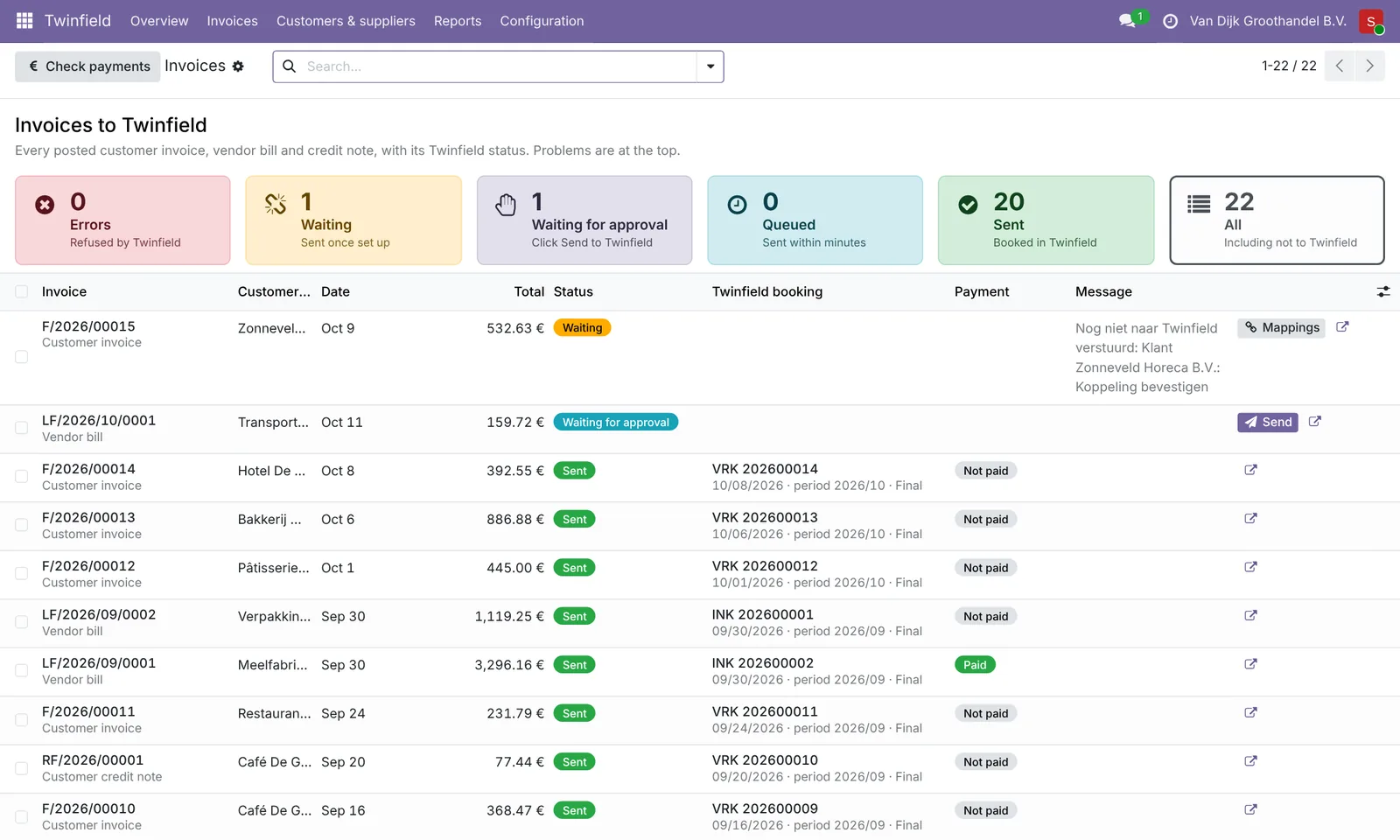
Create and post your invoice in Odoo as always. Within a few minutes it is in Twinfield. That goes for customer invoices and vendor bills. On the invoice, the Twinfield tab shows the status, and after sending the daybook and booking number. All invoices together are in Twinfield › Invoices.
Statuses
| Status | Meaning | What you do |
|---|---|---|
| Queued | Goes within a few minutes. | Nothing. |
| Waiting for approval | Setting "with approval". | Click Approve. |
| Waiting | Something is missing: a mapping or a choice for the customer. | Follow the message. Then it goes by itself. |
| Sent | It is in Twinfield. | Nothing. |
| Error | Twinfield refused. The reason is shown. | Fix it and Send again. |
| Not to Twinfield | For example an invoice without amounts. | Nothing. |
| Deleted in Twinfield | Someone removed the booking in Twinfield. | Choose: send again or not. |
| Unlinked from Twinfield | Deliberately unlinked (see Credit notes and corrections). | Nothing. |
What a booking looks like
One line for the customer or supplier (the total) and per ledger account and VAT code one line with the summed amount and the VAT. Each line has the invoice number and the name as description (max. 40 characters), for example INV/2026/00004 Bakery de Vries. Products, quantities and prices stay in Odoo.
Good to know
- Never twice: if the invoice number is already booked on that customer or supplier in Twinfield, the invoice is not sent again but marked "Already in Twinfield".
- Start date: only invoices with an accounting date on or after the start date go to Twinfield. Older invoices stay as they are.
- One VAT per line: Twinfield wants one VAT code per line. A line with a group of taxes waits.
- Foreign currency: the invoice goes in that currency and Twinfield converts it with its own rate. The currency must exist in Twinfield.
- EU sales: for intra-community sales the connector sends whether it is goods or services, the customer's country and VAT number, and for services the date.
- Provisional or final: in the Settings you choose how bookings are made in Twinfield. A provisional booking can still be removed; a final one cannot.
- An invoice with an error does not hold up the rest: other invoices simply go ahead. Up to 50 invoices go per sending round; if there are more, the next round follows right away.
Need help?
Can't work it out? E-mail us with your ERP2XL customer number (see Twinfield › Configuration › Connection) and a short description, at [email protected].