
You don't have to create customers and suppliers in Twinfield yourself.
- Does the relation already exist in Twinfield with the same VAT or CoC number? Then the connector links it by itself.
- New customer or supplier? The connector creates it in Twinfield with the first invoice. Twinfield gives the number.
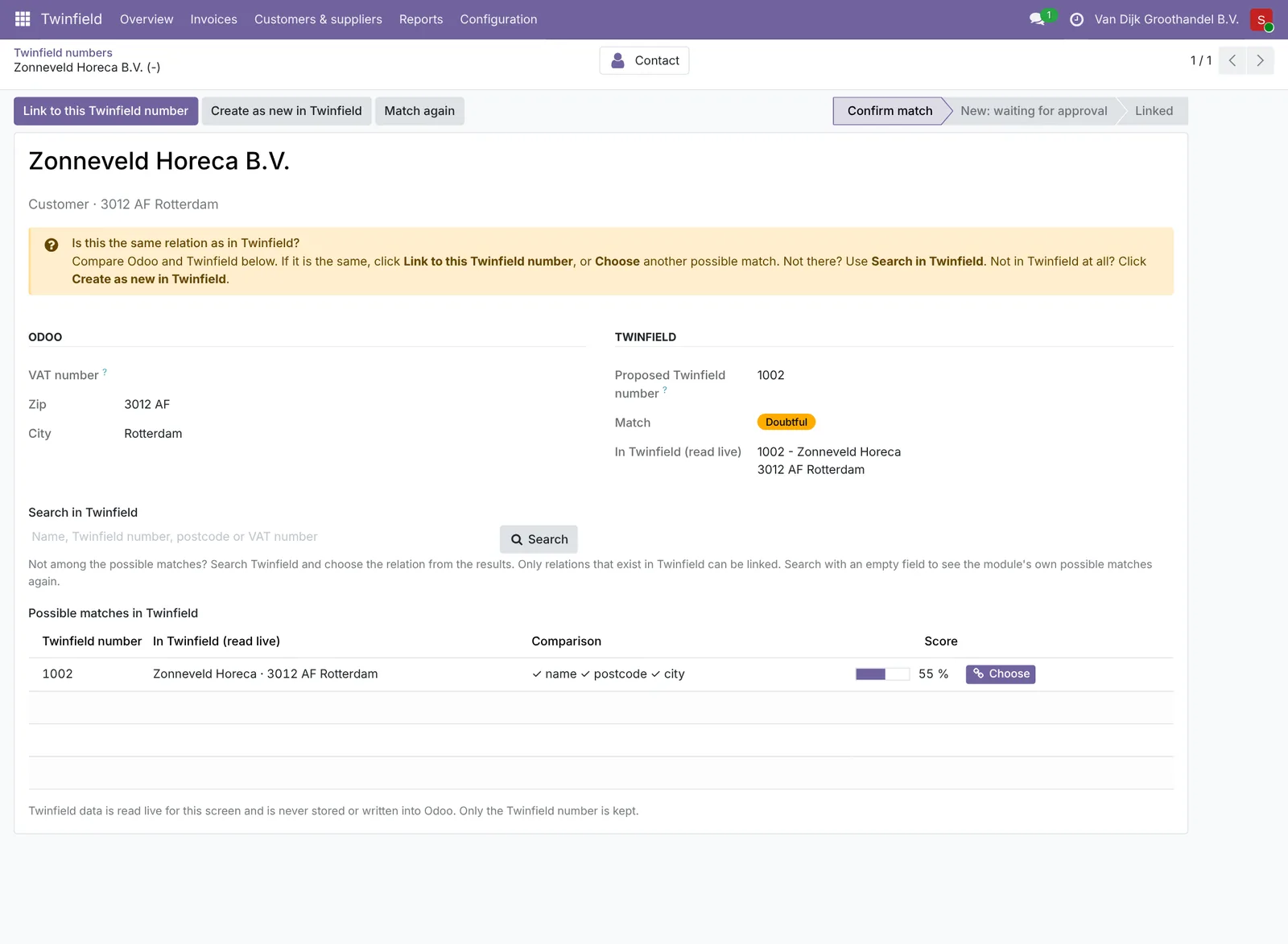
- In doubt? Then the connector asks you, in Twinfield › Customers & suppliers.
How the connector searches
- By VAT number (without country code), then by CoC number. Exactly one hit: linked by itself, even if the name differs.
- Otherwise by zip code and the longest word of the name. The best three appear as possible matches, with per detail ✓ (equal), ≈ (similar) or ✗ (different). Click Choose at the right one.
- Same name but another VAT number: VAT conflict. You decide; invoices wait.
- Nothing found: create in Twinfield (automatically or after approval).
Search yourself
The right one isn't there? Use Search in Twinfield. Only digits searches by Twinfield number, a zip code or VAT number searches the address, text searches by name. You always choose from relations that really exist in Twinfield.
Linked to the wrong one?
Click Unlink (accounting manager). The relation stays on screen so you can choose or create the right one straight away. New invoices wait until then; sent invoices stay on the old number. With Match again the connector searches Twinfield again right away.
Changes
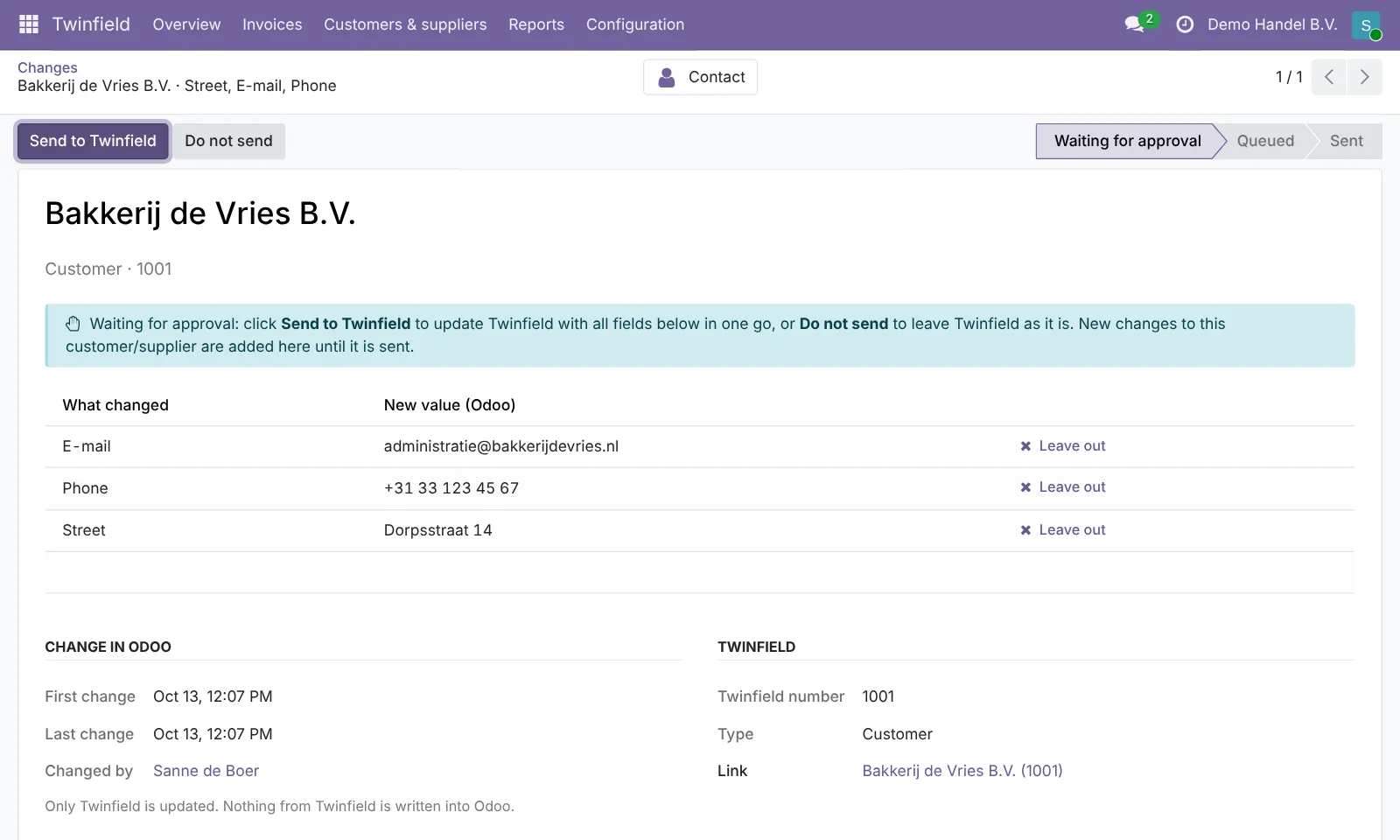
If you change the name, address, VAT number, CoC number, e-mail, phone or website of a linked customer or supplier in Odoo, that goes to Twinfield too. All changes to one customer come together in one line in Twinfield › Customers & suppliers › Changes: you approve them in one go and they go to Twinfield in one message. Don't want to send one field? Click Leave out at that field in the change.
- Attention (t.a.v.): the name of the contact of type Invoice address under the company goes to the attention field in Twinfield.
- The CoC number comes from the Company ID field, or otherwise from the Peppol address with scheme 0106.
- Odoo leads: changes made in Twinfield are not copied into Odoo. Payment terms, credit limits and bank details in Twinfield stay as they are.
Need help?
Can't work it out? E-mail us with your ERP2XL customer number (see Twinfield › Configuration › Connection) and a short description, at [email protected].